See Your Patterns. Change Your Life.
Pattern Tracker is a simple, flexible self-monitoring tool that helps you notice what's actually happening in your life—so you can make changes that stick. Whether you're working on building better habits, managing stress, or just trying to understand yourself better, Pattern Tracker gives you a way to capture moments as they happen and see the bigger picture over time.
Note: On iPhone or iPad, you'll need to open this link in Safari to install the app.
What is Pattern Tracker?
We're not always great at knowing ourselves. We think we know how often we snack, how much we procrastinate, or what triggers our stress—but memory is unreliable. We forget. We rationalize. We tell ourselves stories that don't quite match reality.
Pattern Tracker closes the gap between what you think you do and what you actually do.
At its simplest, Pattern Tracker is a single button. Tap it, and you've logged a moment with a timestamp. That's it. But as you get comfortable, you can add layers—tracking your mood, how long something lasted, or any other dimension that matters to you.
This "start simple, grow complex" approach means you're never overwhelmed. You begin with one tap. Over time, you build a detailed picture of your patterns.
Who is it for?
Pattern Tracker is for anyone doing personal development work—especially if you're working with a coach or therapist. It's built for people who want to move beyond guesswork and bring real data into their growth process.
Some examples of what people track:
- •Productivity patterns: When do you actually do your best work? When do you get distracted?
- •Stress and triggers: What situations consistently throw you off? Are there patterns you haven't noticed?
- •Habit building: Are you really sticking to that new morning routine? The data doesn't lie.
- •Energy levels: When do you feel most alive? Most drained?
- •Goal progress: How often are you actually taking action toward what matters to you?
The power isn't just in tracking—it's in what the data reveals. Patterns you couldn't see become obvious. Conversations with your coach get more concrete. Changes become easier because you're working with reality, not guesses.
How to Use Pattern Tracker
Step 1: Install the App
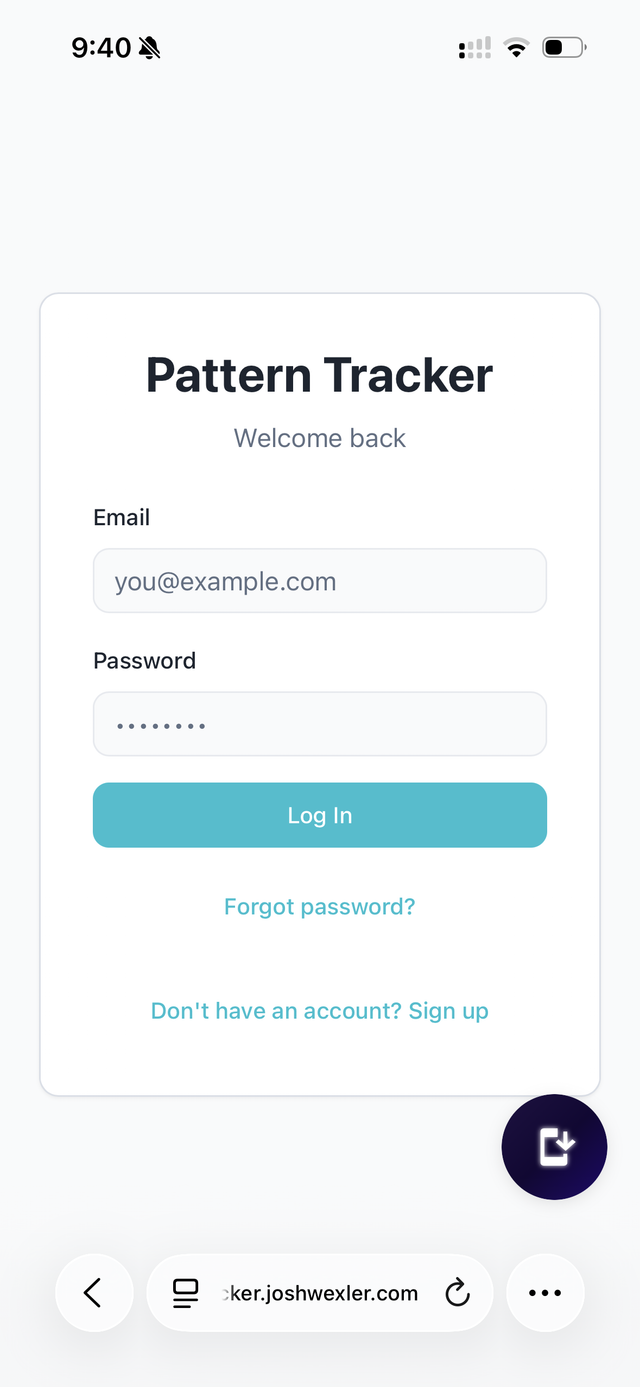
Pattern Tracker is a Progressive Web App (PWA), which means you install it directly from your browser—no app store needed.
Desktop & Android (Chrome/Edge)
- Go to install.page/patterntracker
- Tap the Install (or +) button in the address bar and confirm.
- The app is added to your device and opens full-screen.
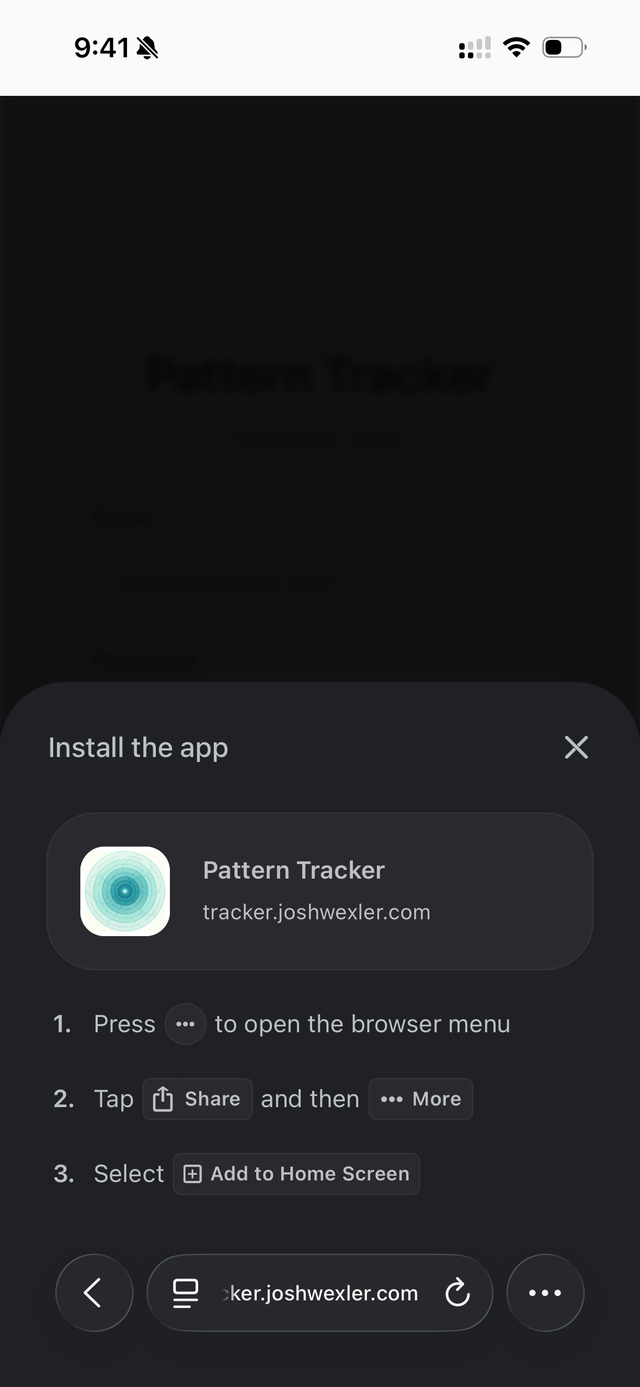
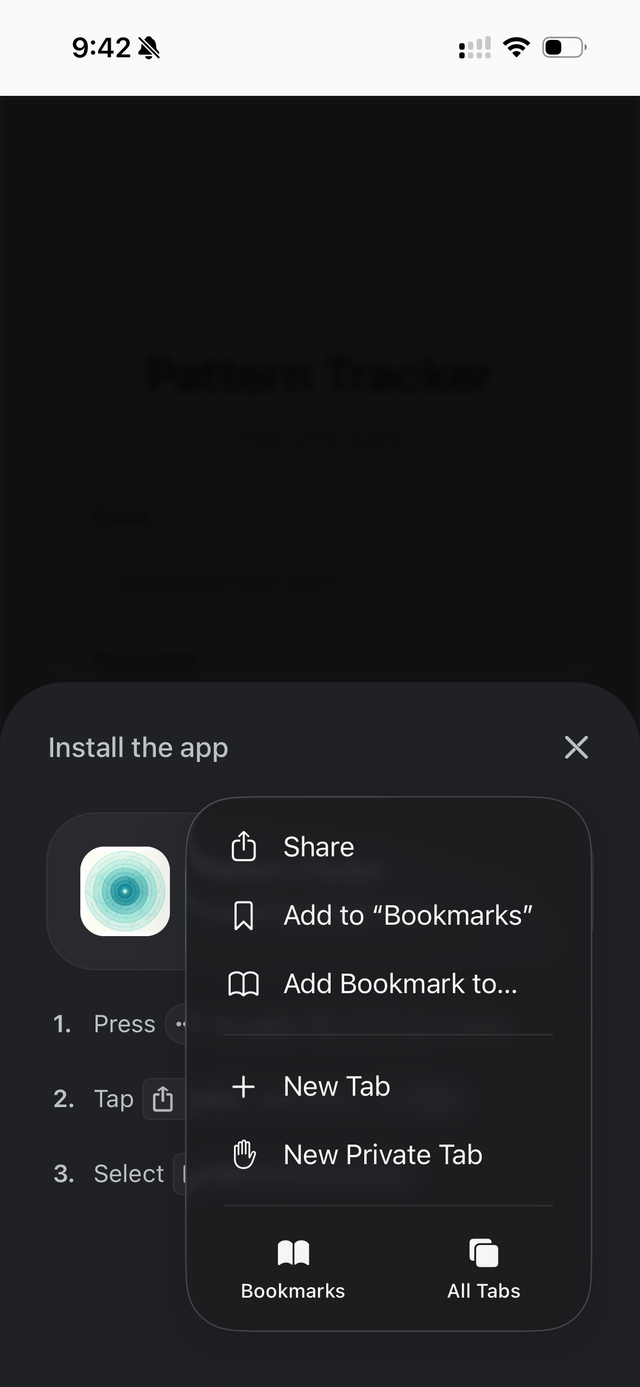
iOS (Safari)
- Open Safari and go to install.page/patterntracker
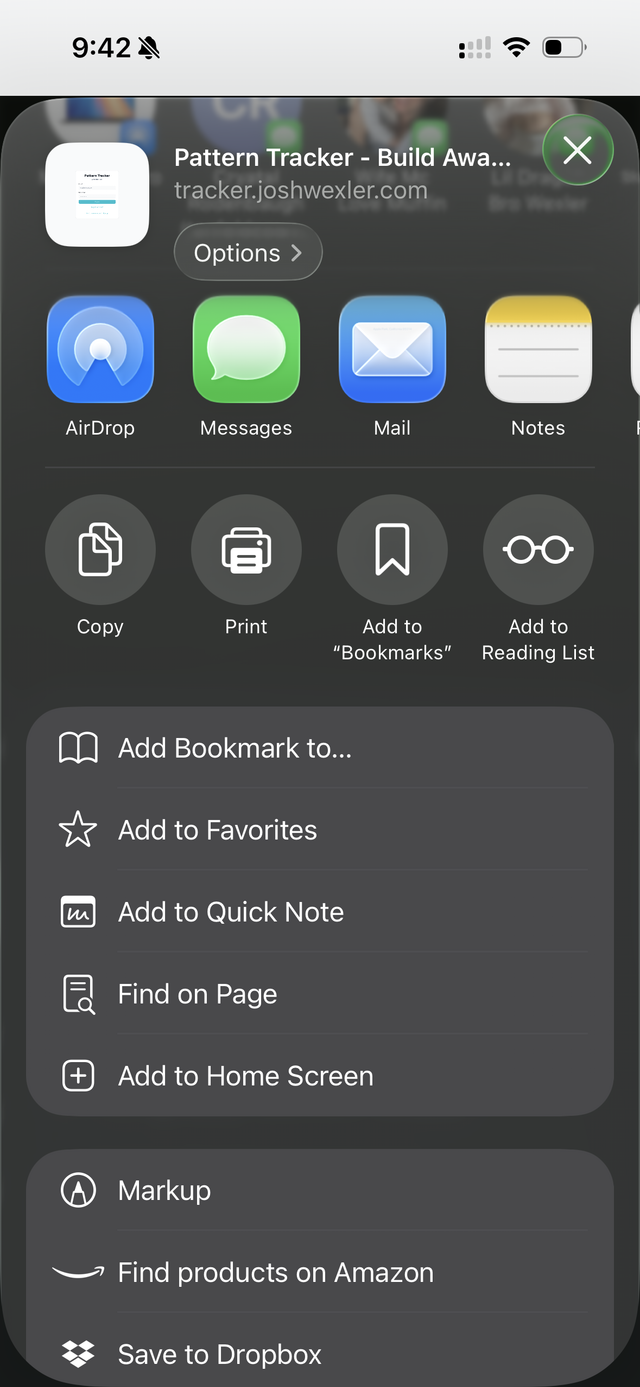
- Tap the Share button (square with arrow up).
- Scroll and tap Add to Home Screen.
- Tap Add to confirm. Pattern Tracker now appears on your home screen.
- Open it and log in to start tracking.
Step 2: Create Your Account
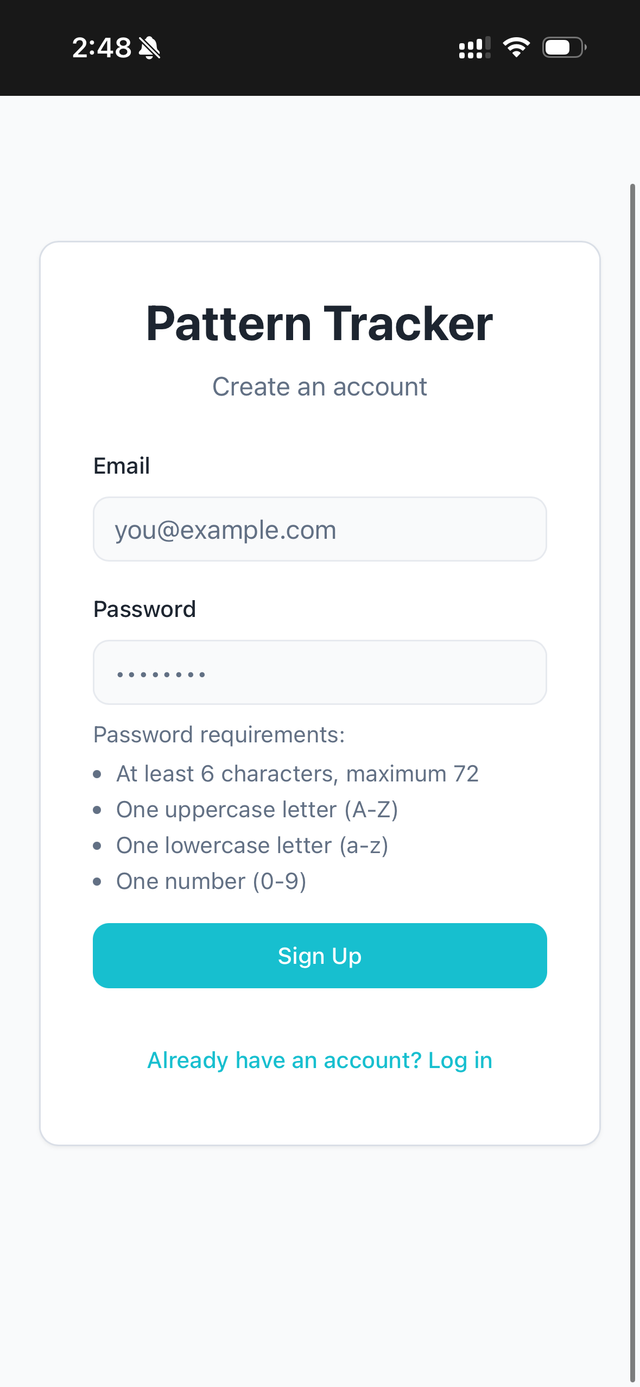
When you first open Pattern Tracker, you'll create an account with your email and a password.
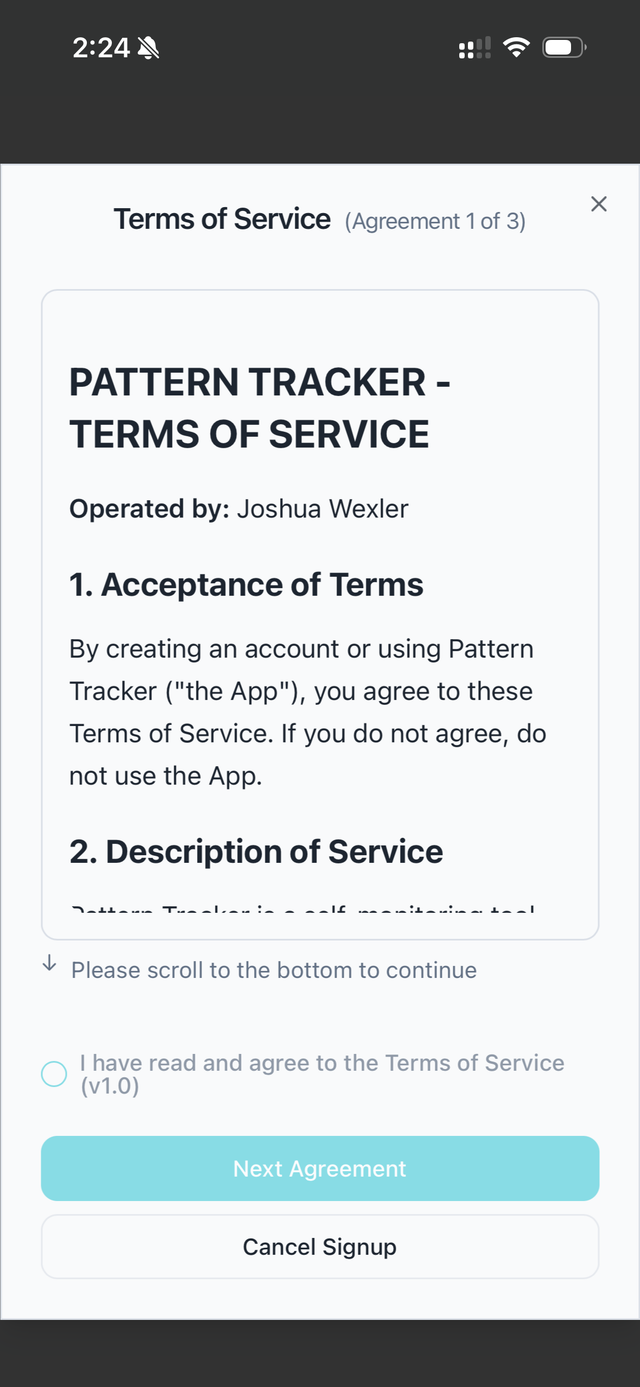
After signing up, you'll review and accept three agreements:
- Terms of Service – The rules for using the app
- Privacy Policy – How your data is handled
- User Acknowledgment – Important information about what Pattern Tracker is (and isn't)
Take a moment to read these, especially the User Acknowledgment. It's important that you understand this is a personal development tool, not a medical or therapeutic service.
Step 3: Track Your First Moment
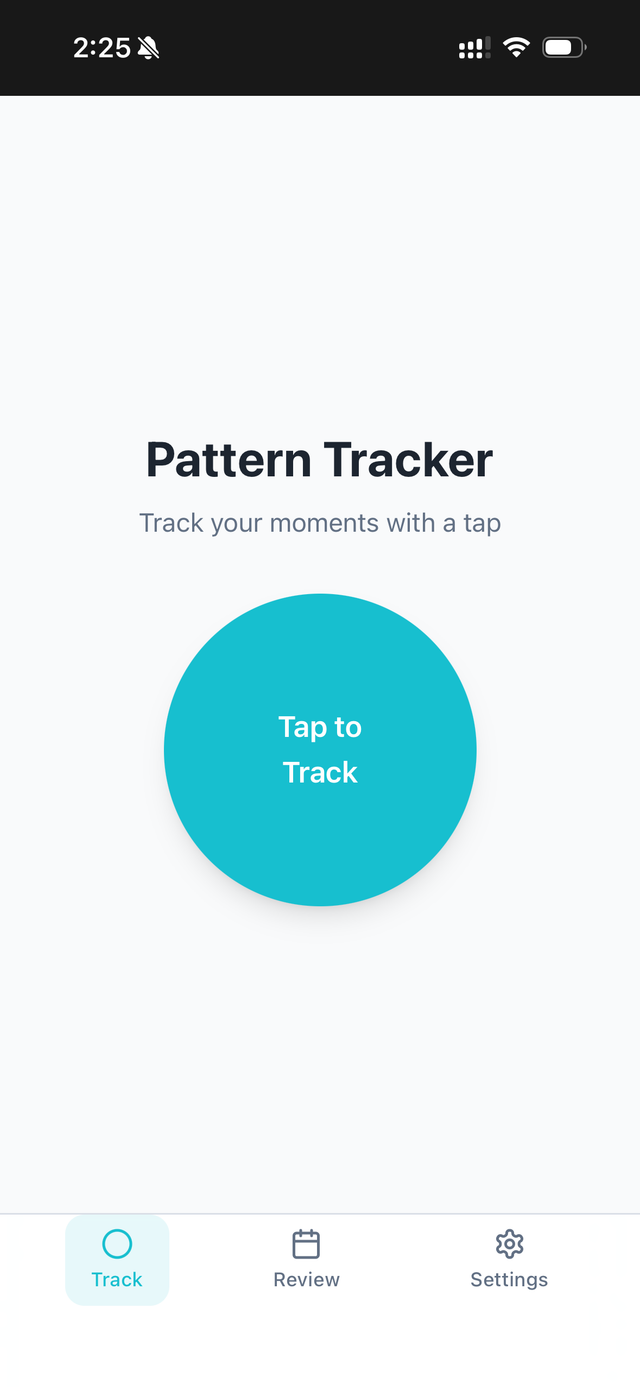
Once you're in, you'll see a large button in the center of the screen that says "Tap to Track."
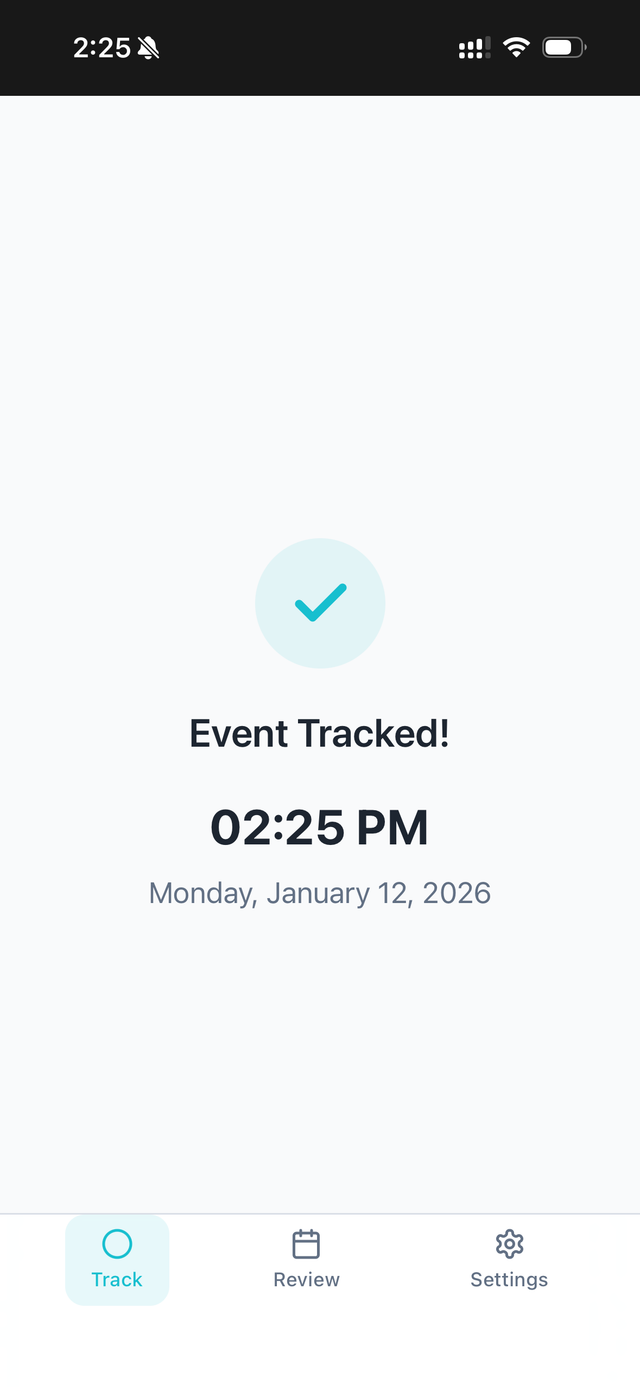
Tap it.
That's it—you've just logged your first event. The app records the exact time and date automatically. This is Pattern Tracker at its simplest: a timestamped record of a moment. If all you ever do is tap this button whenever "the thing" happens, you'll already have valuable data about frequency and timing.
Step 4: Enable Tracking Modules
Ready to capture more detail? Head to the Settings tab (the gear icon at the bottom right).
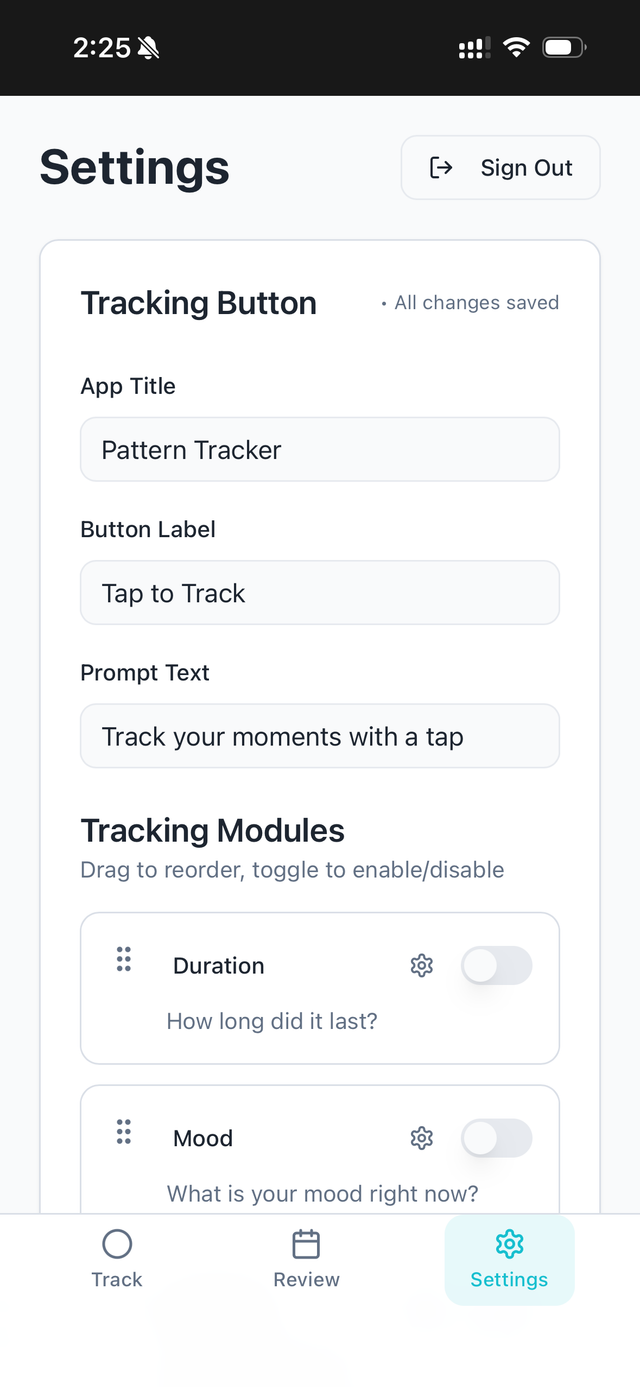
You'll see a section called Tracking Modules with several options:
- •Duration – How long did it last? (Long / Medium / Short)
- •Mood – What's your mood right now? (Happy / Sad / Anxious / Calm / Energetic / Tired)
- •Intensity – How intense is it?
- •Notes – Free-form space to add any additional context
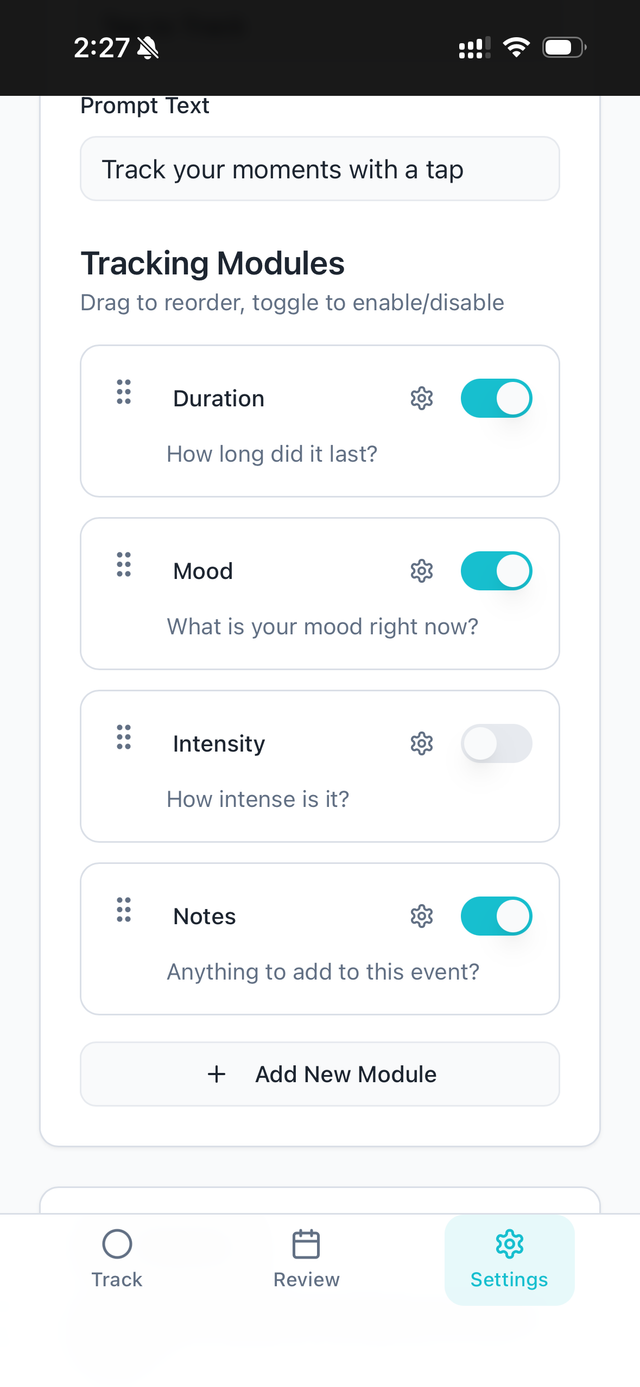
Toggle on the modules you want to use. You can drag them to reorder—the order here determines the order you'll see them when tracking.
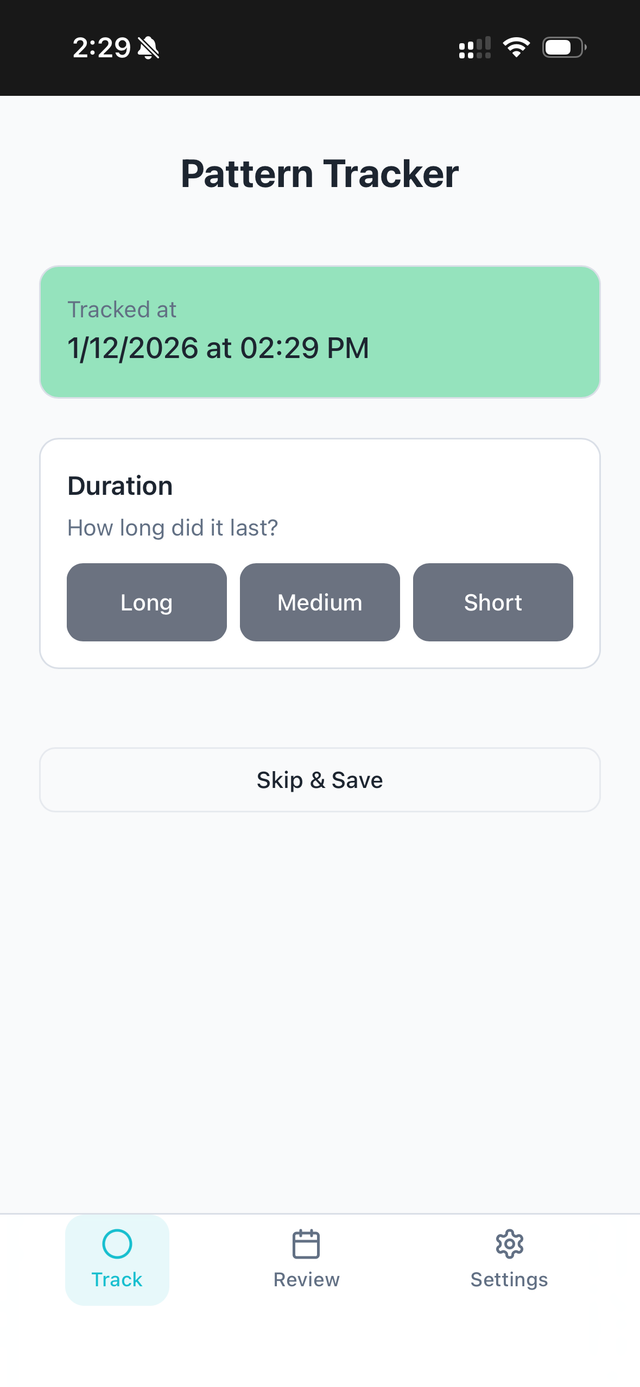
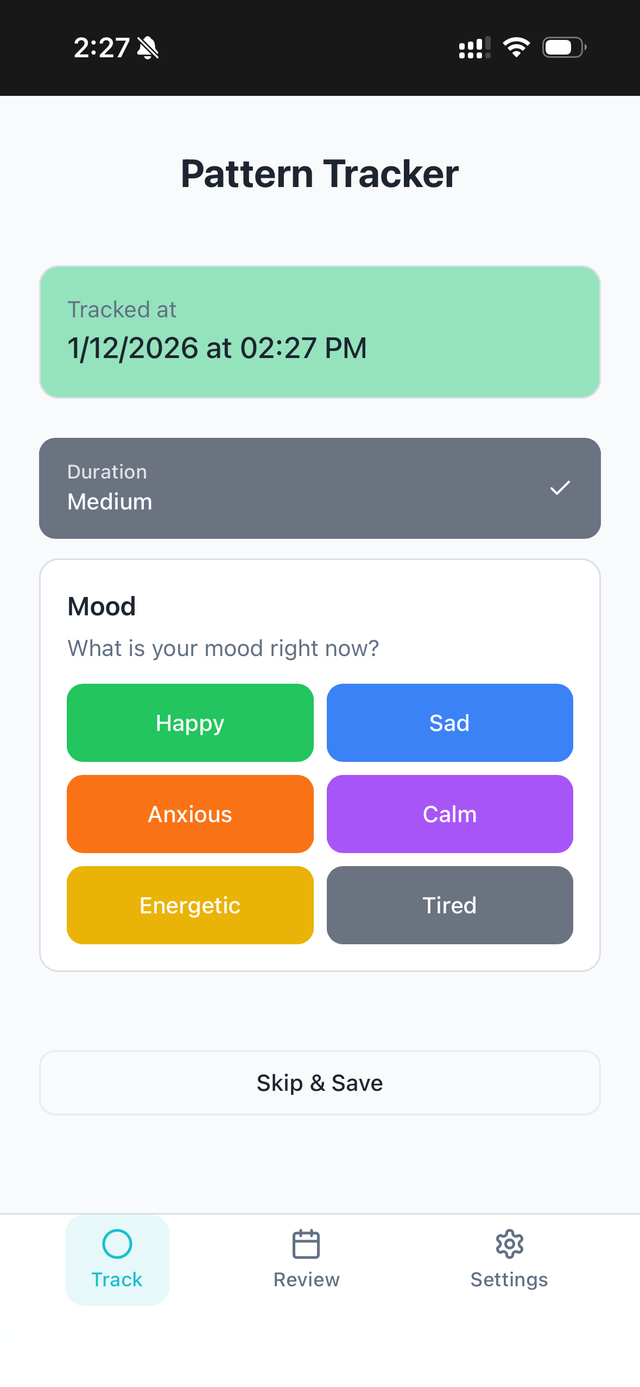
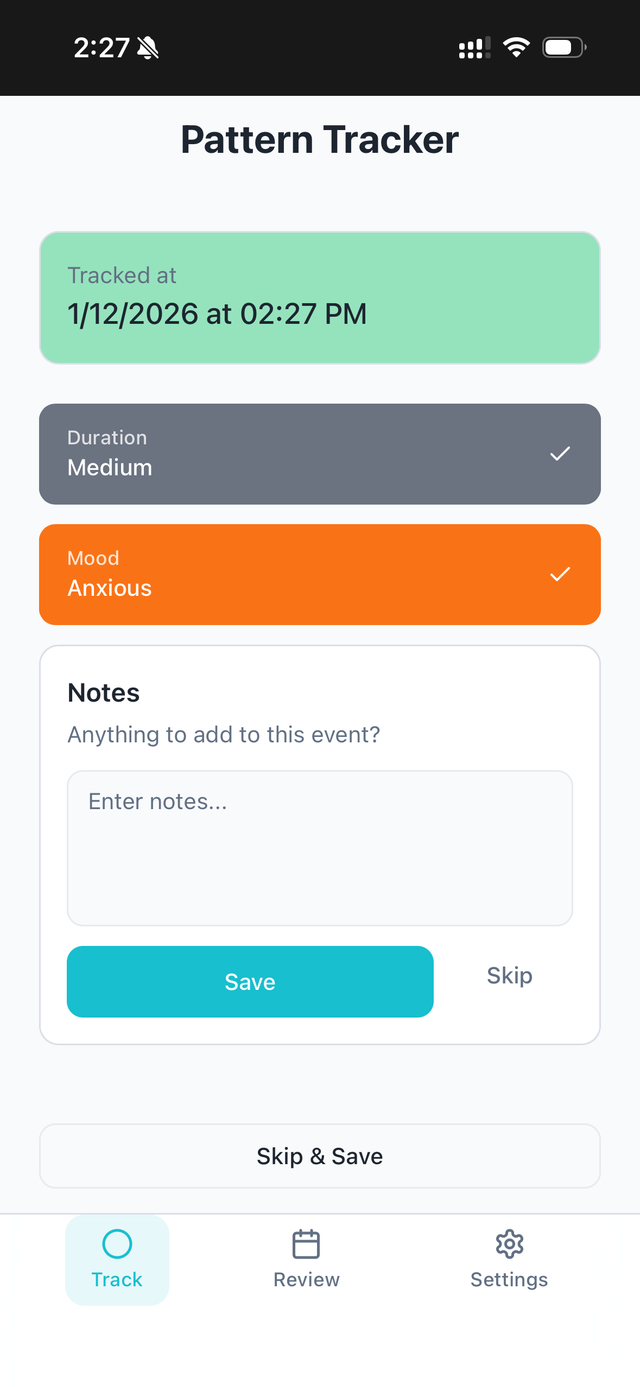
Now when you tap the tracking button, you'll move through each enabled module before saving your event.
Pro tip: You can always tap "Skip & Save" to log an event without answering every question. Some data is better than no data.
Step 5: Customize Your Modules
Each module can be tailored to fit exactly what you're tracking.
Tap the gear icon next to any module to edit it. From here you can:
- •Change the module name (e.g., rename "Mood" to "Energy Level")
- •Update the description (the prompt text that appears when tracking)
- •Add, remove, or rename options (e.g., add "Frustrated" to the Mood options)
- •Change colors for each option (makes your Review screen easier to scan)
- •Reorder options by dragging them
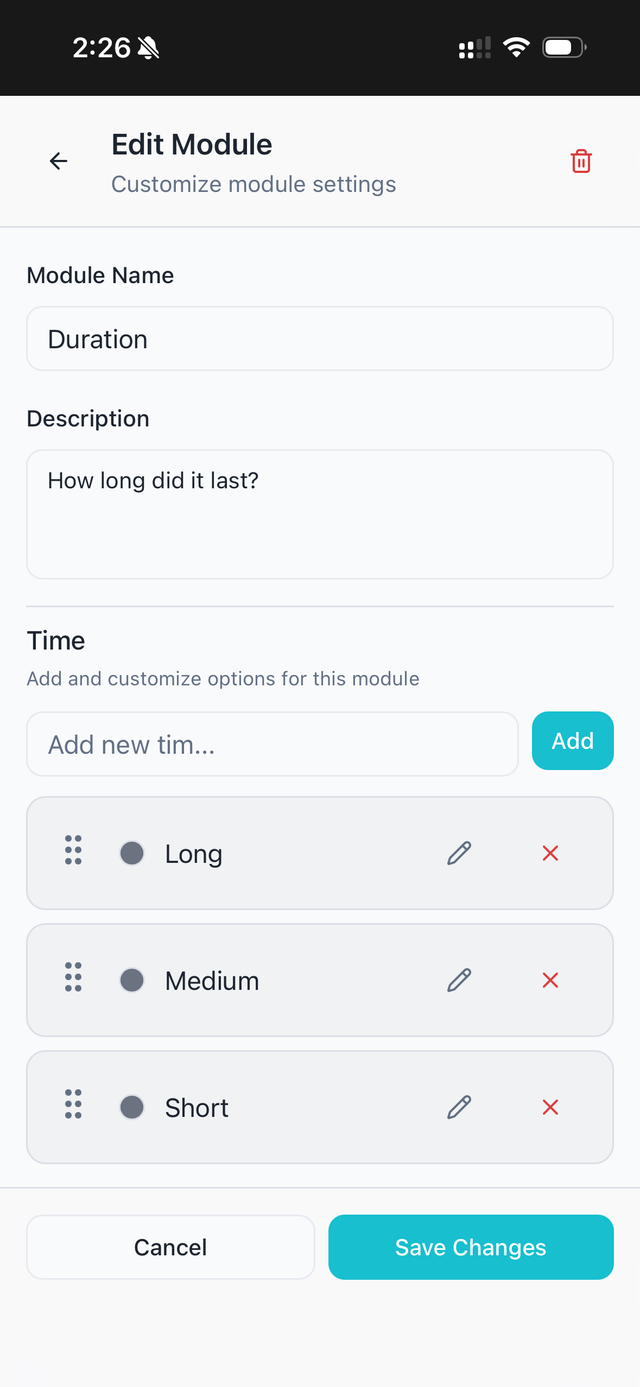
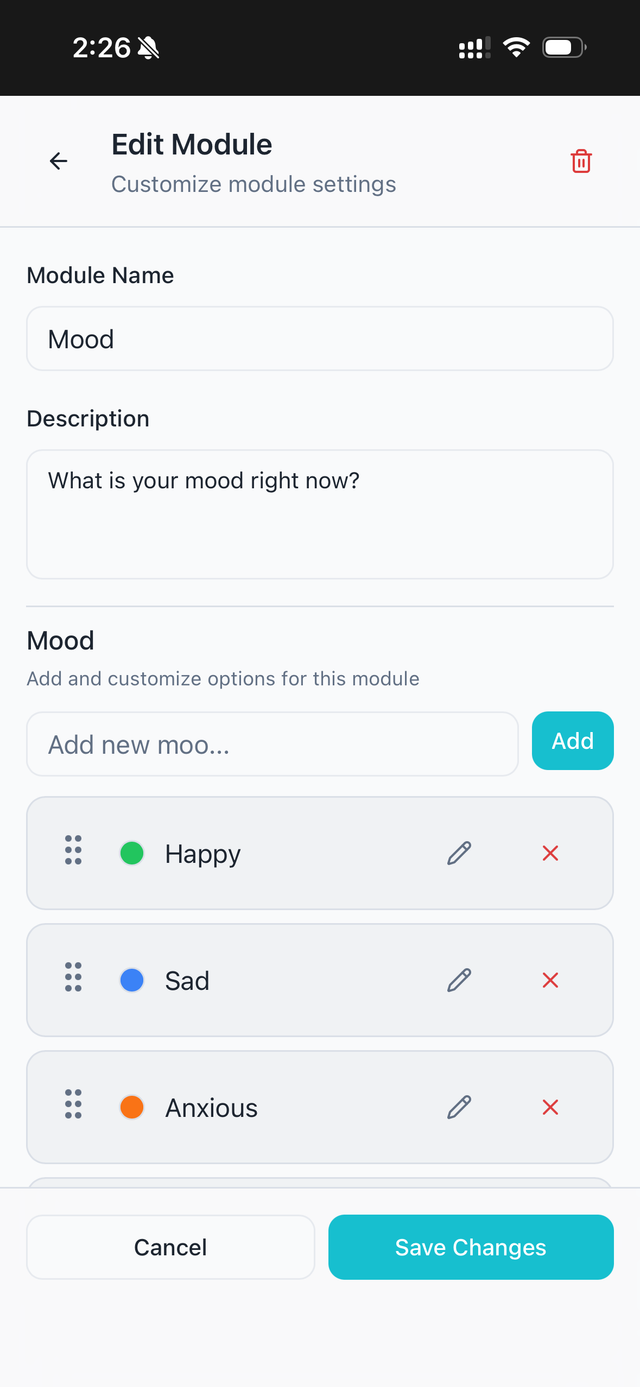
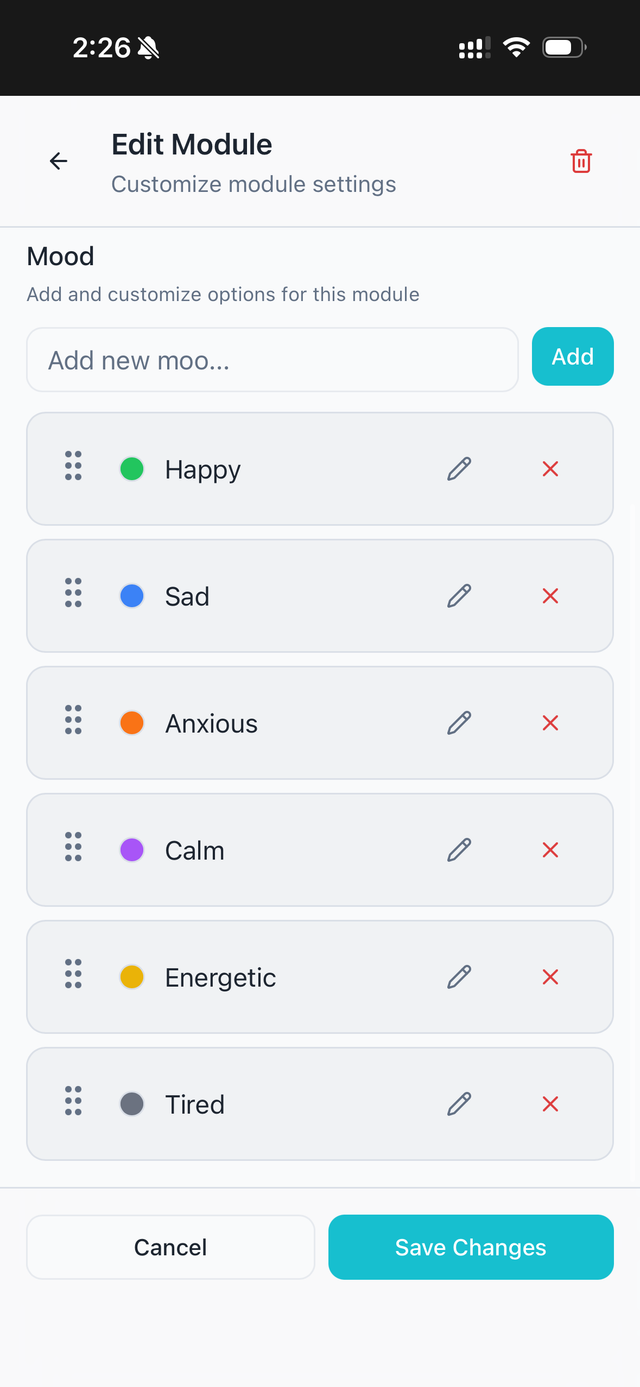
This flexibility means you can make Pattern Tracker work for whatever you're tracking—it adapts to you, not the other way around.
Step 6: Build Your Own Module
Want to track something that doesn't fit the built-in modules? Create your own.
- In Settings, scroll down and tap "+ Add New Module"
- Give it a name (e.g., "Location," "Who I'm With," "What I Ate")
- Add a description that will prompt you during tracking
- Choose a module type:
- Options – Multiple choice selections (like Mood)
- Text Input – Free-form text entry (like Notes)
- If you chose Options, add your choices and assign colors to each
- Tap "Save Module"
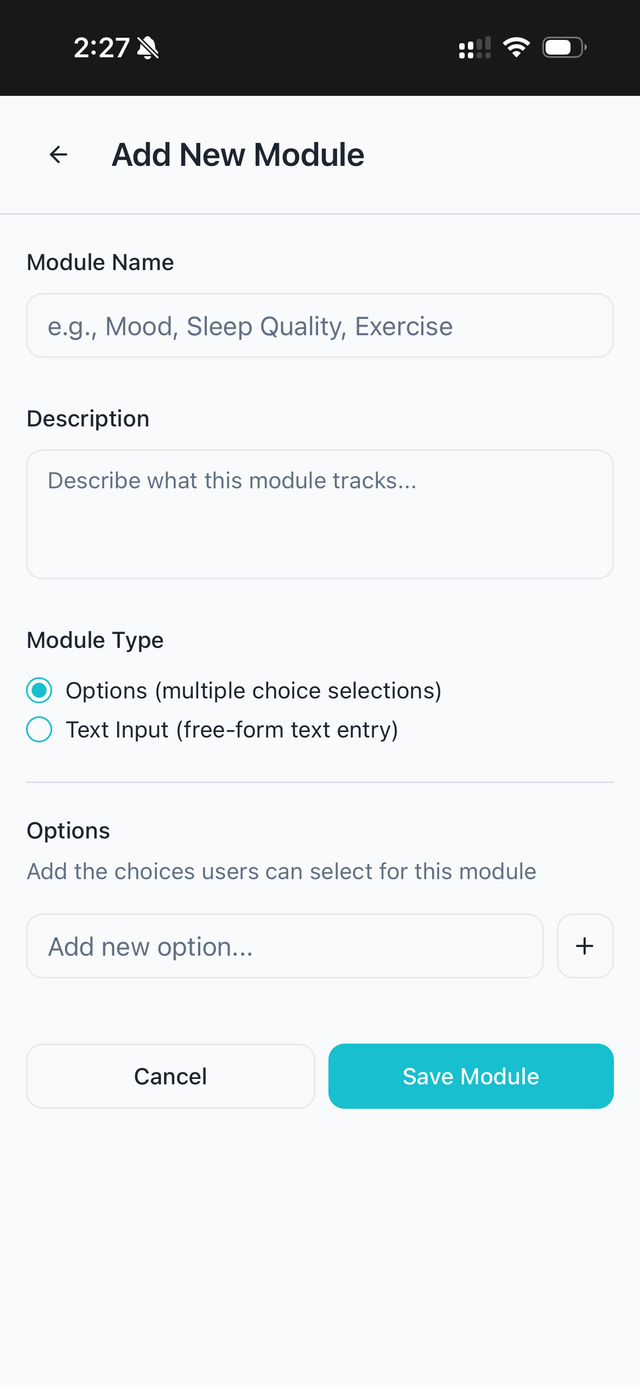
Your new module now appears in the list. Toggle it on and drag it to where you want it in the sequence.
Step 7: Review Your Data
Tap the Review tab (the calendar icon) to see your tracking history.
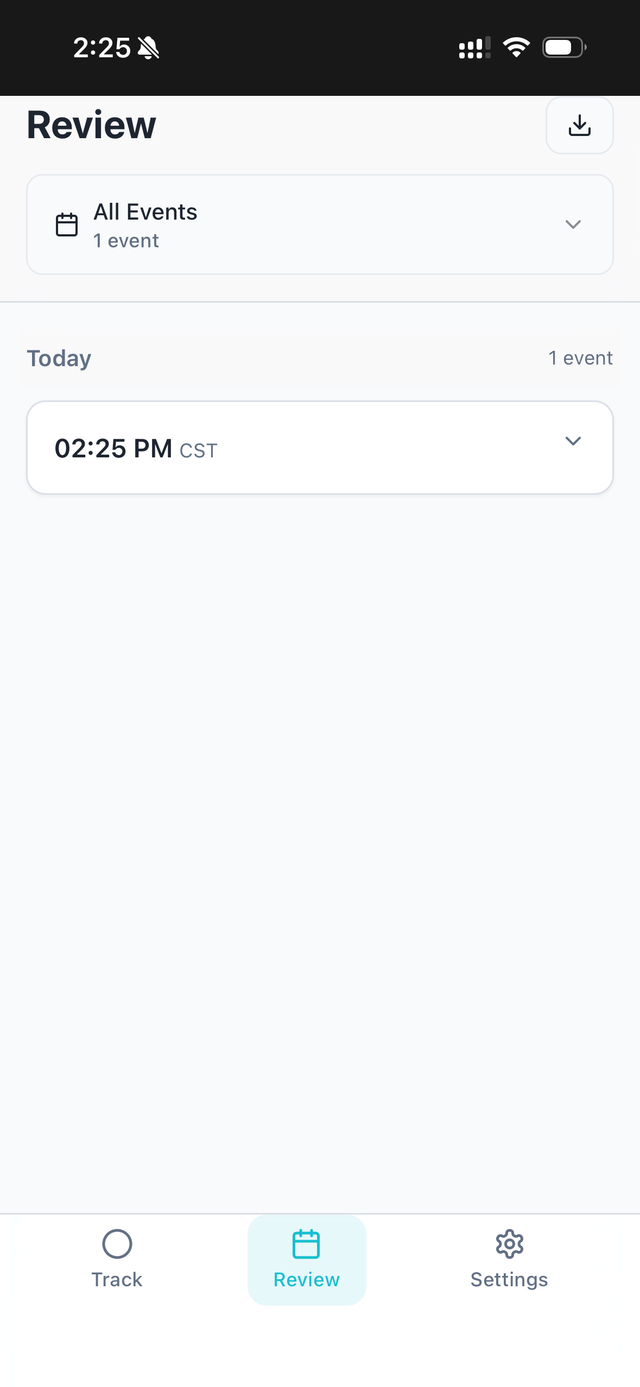

You'll see all your events listed by date, with color-coded tags showing what you tracked. Tap any event to expand it and see the full details.
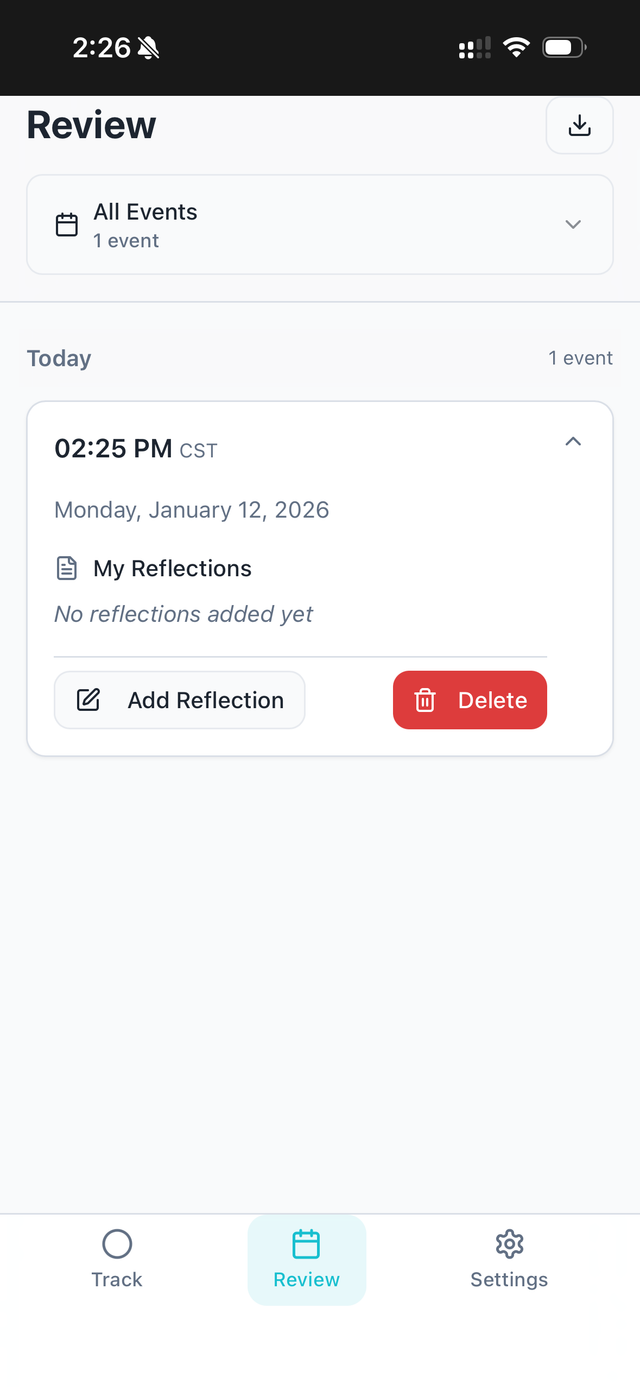
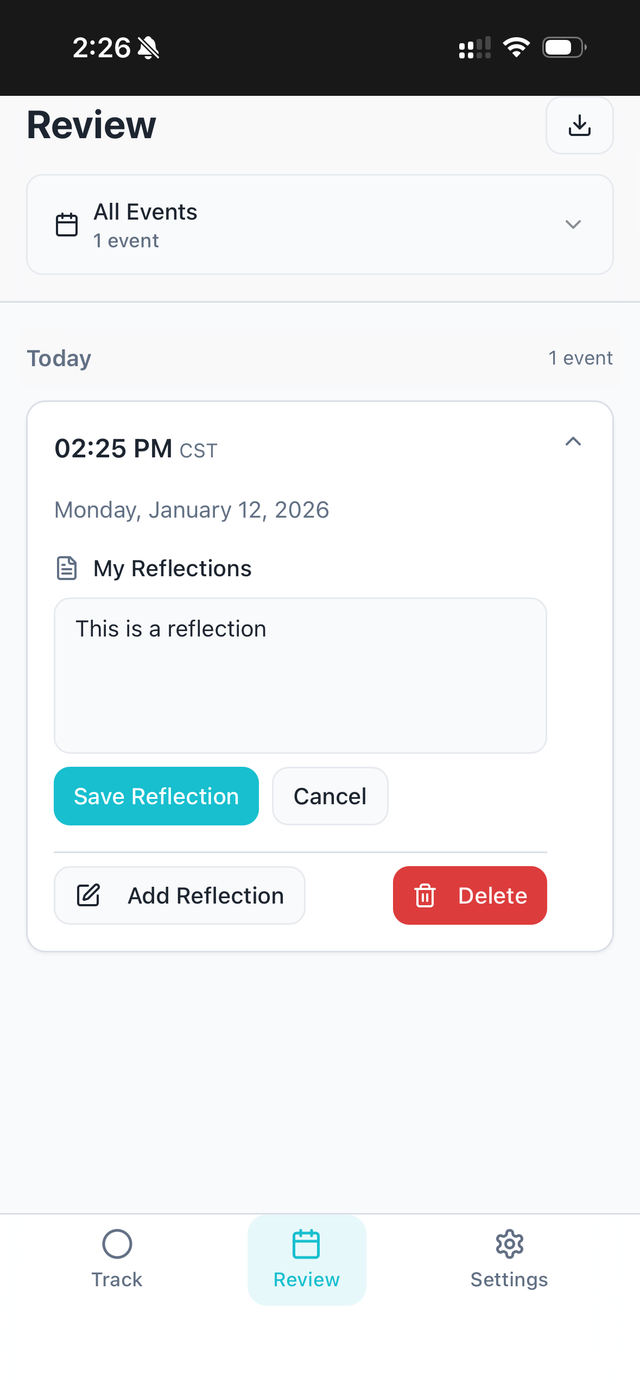
From the expanded view, you can:
- •See all the data you captured for that moment
- •Add a reflection – Sometimes insights come later. Tap "Add Reflection" to note what you're noticing about this event in hindsight.
- •Delete an event if needed
Use the dropdown at the top to filter by specific events or time periods.
Step 8: Export Your Data
Ready to take your data somewhere else? Tap the download icon in the top right corner of the Review screen.
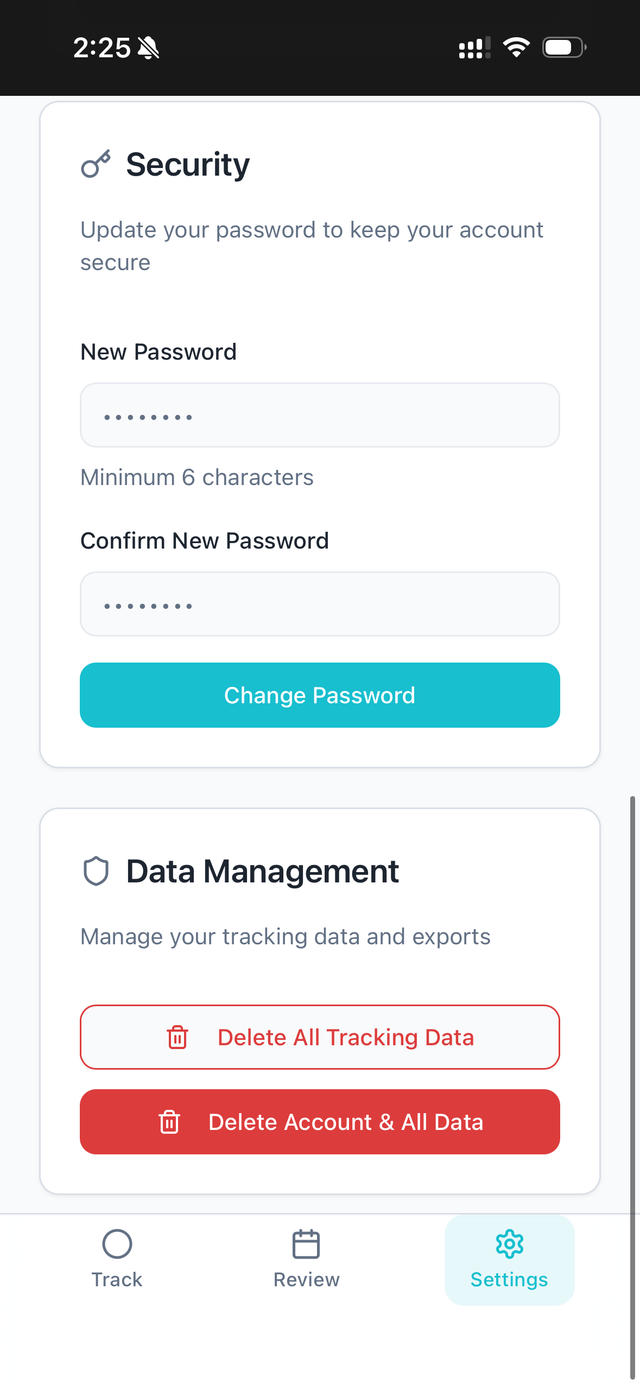
This exports all your tracking data as a CSV file—a format that works with spreadsheets, data analysis tools, or just as a backup.
From the share sheet, you can:
- •AirDrop it to your computer
- •Email it to yourself or your coach
- •Save to Files for safekeeping
- •Message it to someone
Your data belongs to you. Export it whenever you want.
Important Information
Please read this section carefully.
Pattern Tracker is a consumer coaching and personal development tool. It is designed to help you monitor your own behaviors and patterns for personal insight and growth.
Pattern Tracker is NOT:
- •Therapy or medical treatment
- •A substitute for professional mental health care
- •A diagnostic tool
- •HIPAA compliant
By using Pattern Tracker, you understand that:
- •This app is for personal development and coaching purposes only
- •You are responsible for your own data and how you use it
- •The information you track is not protected health information (PHI)
- •You should seek professional help for any medical or mental health concerns
- •Use of this app is at your own risk
If you're currently working with a therapist or healthcare provider, Pattern Tracker can be a helpful supplement to that work—but it doesn't replace it.
Working With Your Coach
Pattern Tracker becomes even more powerful when you bring it into your coaching relationship.
From Memory to Data
Think about how you typically describe your week to your coach: "I think I was pretty stressed" or "I feel like I've been doing better with my morning routine."
Now imagine saying: "I tracked 14 stress moments this week. Most of them happened between 2 and 4 PM, and eight of them were on days I skipped lunch." Or: "I hit my morning routine 5 out of 7 days, and on the two days I missed, I'd been up past midnight the night before."
That's the difference Pattern Tracker makes. You move from fuzzy impressions to concrete patterns. Your coach can help you see what the data means and work with you on targeted changes.
How to Share Your Data
Before your coaching session, export your data using the download button in the Review tab. You can:
- •Email the CSV to your coach ahead of time so they can review it before your session
- •Walk through the Review screen together during your session, either in person or via screen share
- •Save exports regularly to track your progress over longer periods
Some clients like to export weekly; others do it right before each session. Find what works for you and your coach.
What's Coming
I'm building visualization tools that make it even easier to spot patterns in your data—charts, trends, and insights that go beyond the raw numbers. I'll be sharing more about these tools and how to use them in upcoming articles.
Subscribe to my Substack to get notified when new features and guides are available.
Questions?
If you run into any issues or have questions about Pattern Tracker, reach out to me at josh@joshwexler.com.
Pattern Tracker is a personal project I built to help my clients—and now I'm sharing it with you. I hope it helps you see yourself more clearly and make the changes you're working toward.