
iPhone and iPad
Gamepad MIDI
A MIDI performance controller for iPhone and iPad. Pick up a game controller and play your synths, drum machines, and effects with it.
Get it on the App StoreFree. Runs as an AUv3 MIDI plugin. No accounts, no tracking, no data collected.
Getting started
- Connect a game controller that iOS supports.
- Open a music app that hosts AUv3 MIDI plugins, like AUM, and load Gamepad MIDI in a MIDI slot.
- Route its MIDI output to the synth, drum machine, or effect you want to play.
- Tap the plugin window. The focus dot lights up. Now play.
iOS sends the gamepad only to the window in front. Tap the plugin to give it the gamepad, and tap another app’s window to give it back. When you tap back, anything you let go of in the meantime is ended, so notes don’t get stuck.
The plugin
The plugin shows one of two views, depending on the size of its window.
- Floating window: a strip with a meter for each dial, the last message sent, what’s latched, and the Send chip.
- Fullscreen: the editor. Keys for every button run along the bottom, the sticks sit on the right, and the selected control’s settings are on top.
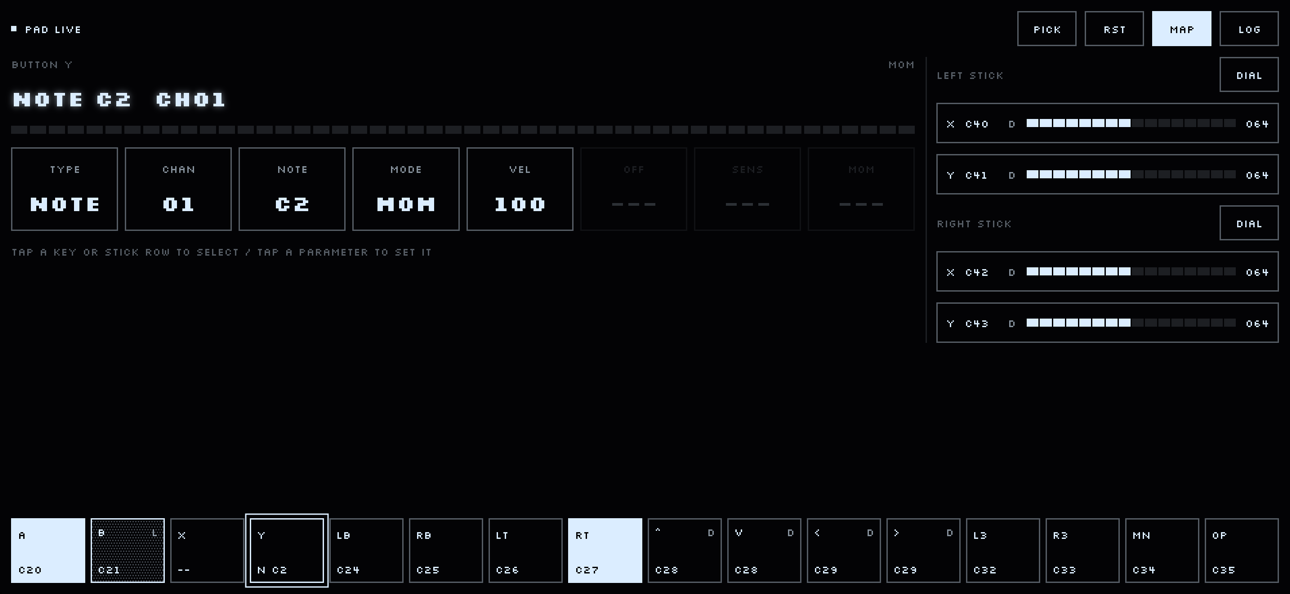
Along the top right:
- Pick
- Press a button, or push a stick past halfway, to select that control instead of sending MIDI.
- Rst
- Ends everything that’s on, like held notes and latches.
- Map
- The editor.
- Log
- A log of what the plugin heard and sent, newest at the top. Copy puts it on the clipboard.
Map a control
- Select a control. Tap its key along the bottom or its row in the sticks panel, or use Pick and press it on the gamepad.
- Tap a parameter to set it.
- Type
- Off, note, or CC.
- Chan
- The MIDI channel.
- Num / Note
- The CC number or the note.
- Mode
- How the control behaves. See Modes.
- On / Off
- The values it sends. A note shows Vel for velocity. Sweeps and dials show Min and Max.
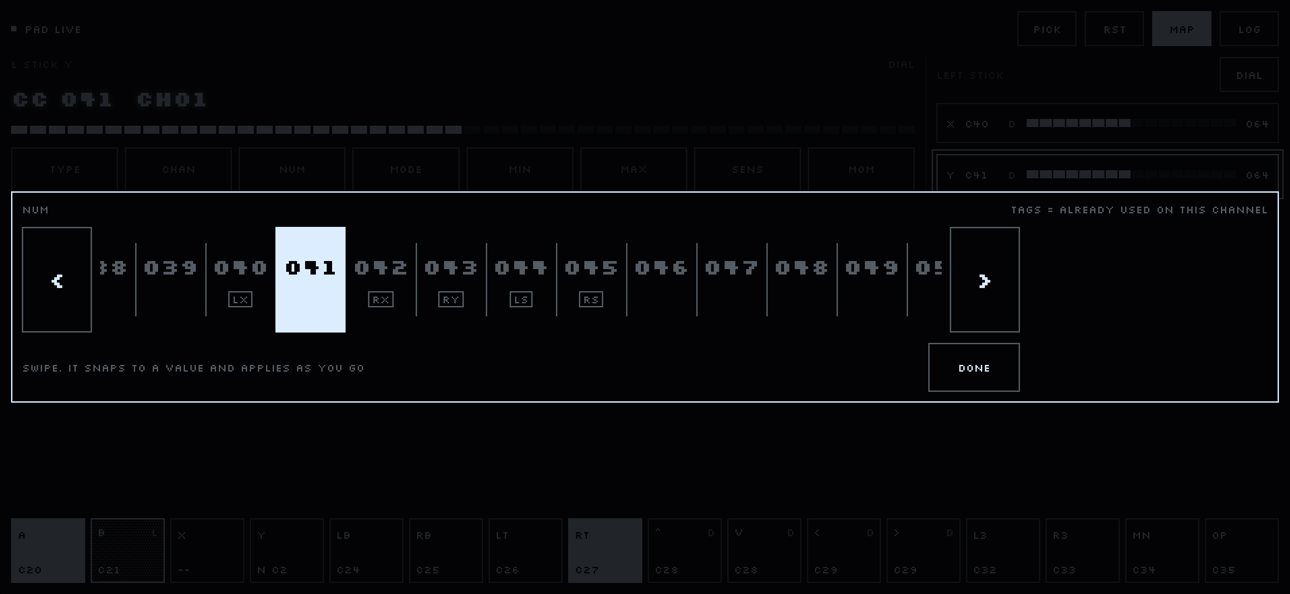
Numbers from 0 to 127 are set on a carousel. Swipe and it snaps to a value and applies as you go. CC numbers already used on that channel are tagged with the control that uses them. Nudge with the arrows, then tap Done.
Modes
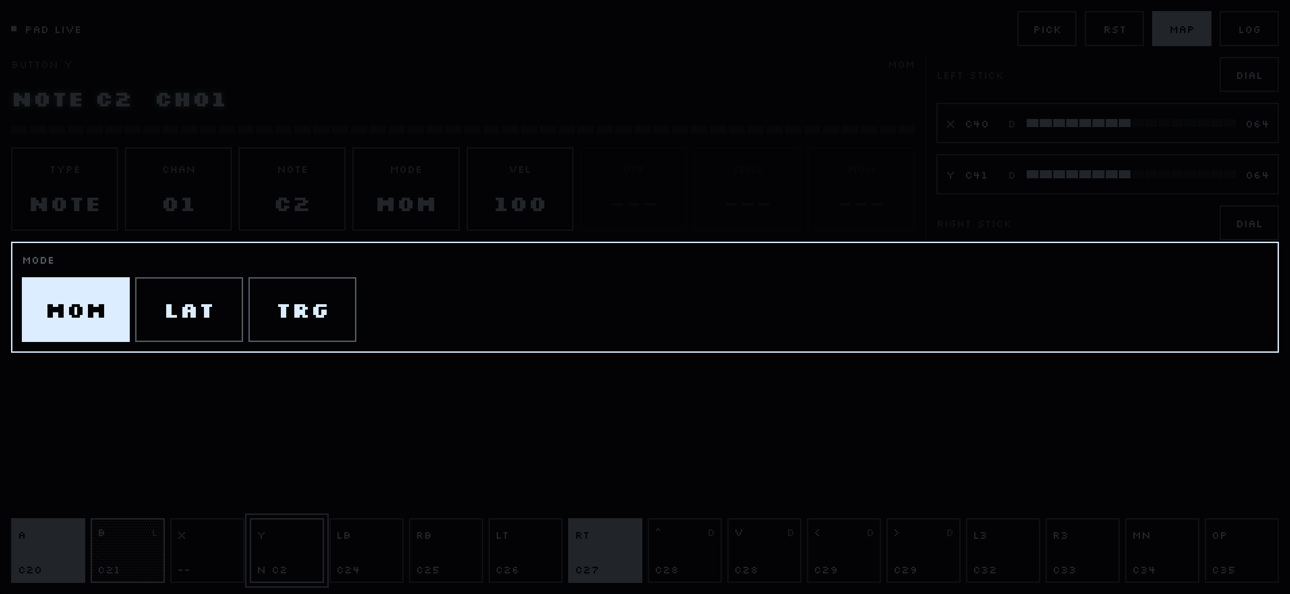
- Mom
- Momentary. On while you hold it, off when you let go.
- Lat
- Latch. The first press turns it on, the next turns it off. Latches stay on when you switch windows.
- Trg
- Trigger. A short pulse on each press.
- Cont
- Continuous, for the triggers and stick axes. The position sets the CC, from Min at rest to Max fully pushed. Good for filters, sends, and swells.
- Dial
- For the D-pad and sticks. Turns a value that stays where you leave it. See Dials.
Dials
A dial turns a CC up or down and leaves it there, like a knob.
- D-pad: each press moves one step. Hold to repeat. It speeds up after a second.
- A stick axis: the further you tilt, the faster it turns.
- A whole stick: tap the stick’s Dial chip and the stick becomes one dial. Circle it clockwise to turn it up and anticlockwise to turn it down. Tap the chip again to get the X and Y rows back, mappings and all.
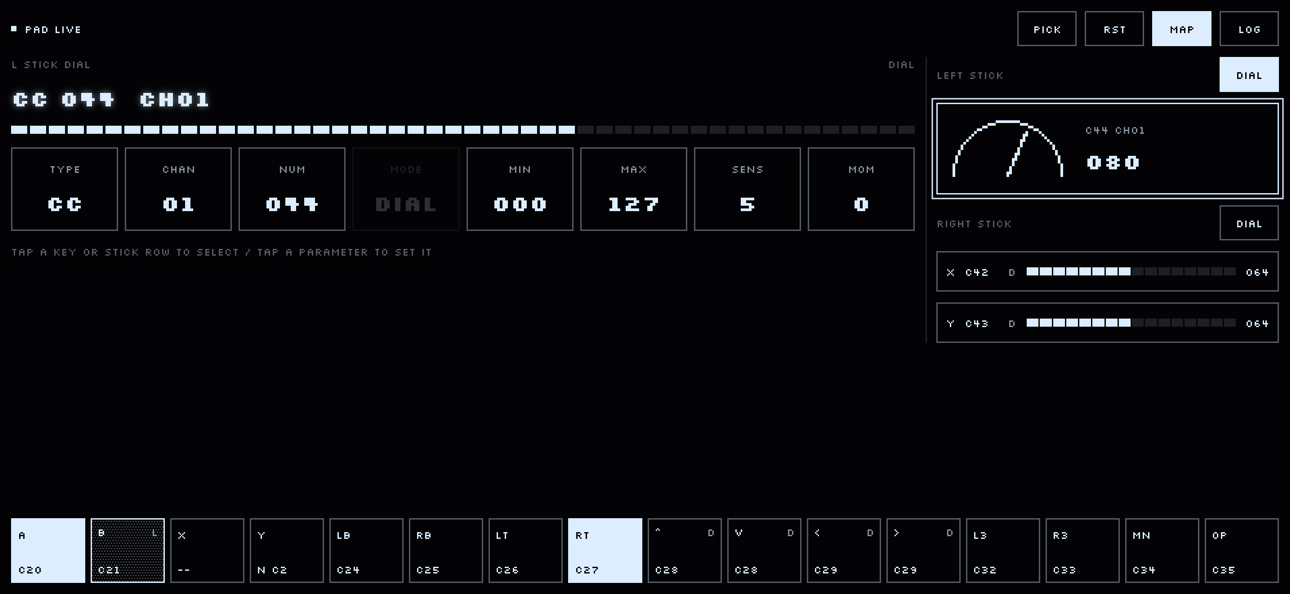
Two settings shape how a dial feels:
- Sens
- 0 to 10. How fast it turns.
- Mom
- 0 to 10. How long it keeps spinning after you let go. Grab the stick to stop it.
Controls on the same channel and CC share one dial, so D-pad up and D-pad down can turn the same value from both sides.
MIDI learn with SEND
While your host’s MIDI learn is in front, the plugin can’t hear the gamepad. Send gets around that.
- Route the plugin’s output to your host’s MIDI control input. In AUM, that’s MIDI Control.
- Press the control on the gamepad, then tap Send on the strip. It blinks and shows what it’s sending.
- Arm MIDI learn in your host on whatever you want to control.
- Tap the strip when you’re done. It also stops on its own after five minutes.
While it waits, the plugin sends the control’s lowest value once a second, so learning can’t turn anything up.
Saving
Your mapping is saved with your project in the host app. Save the project to keep it. Sensitivity, momentum, and which sticks are dials all come back. Latches and dial positions start fresh.
Troubleshooting
The plugin doesn’t react to the gamepad.
Tap the plugin window to give it the gamepad. iOS only sends gamepad input to the window in front.
MIDI learn doesn’t hear the gamepad.
Use Send. See MIDI learn.
Something is stuck on.
Tap the plugin window, or press Rst to end everything that’s on.